


YouTube Lock - Parent Control
0.00.00 Reviews
App Specs
- Version
- 2.4.0
- Updated On
- License
- Free
- Downloads
- 10,000+
- Developer
- Delveron
- Categories
- Parenting
- Platform
- Android
Screenshots
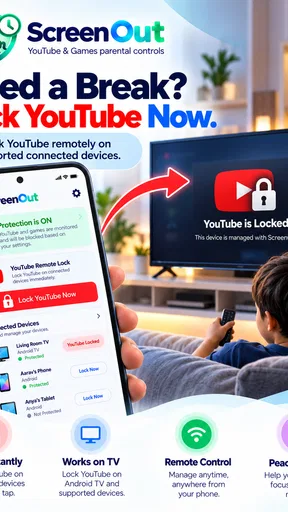
 Analysis by AppCompare
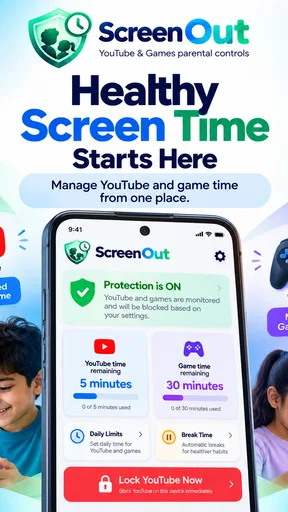
Managing a child’s YouTube time is rarely as simple as saying “one more video.” Autoplay, recommendations, and the ease of reaching the next clip can turn a short break into a much longer session. YouTube Lock - Parent Control is designed around that specific problem: helping parents place limits around YouTube use instead of relying only on reminders or arguments.
I see it as a focused parenting app rather than a complete family-management suite. Its main job is to give screen time a clearer boundary, with parental controls intended for children who use YouTube on an Android device. That narrow purpose is important. If your biggest concern is YouTube becoming an open-ended activity, this approach can be more practical than installing a broad system that includes many controls you may never touch.
The app is free to install, with optional in-app purchases priced at $0.49 per item. It is developed by Delveron, carries an Everyone age rating, and has reached over 10 thousand installs. It was released on January 13, 2026, and the current version is 2.4.0. Those details make it a relatively focused and recent option for parents who want a simple tool dedicated to one of the most common screen-time problems.
Putting a firm boundary around YouTube
I find it useful to treat a YouTube limit as one part of a routine, not as a rule that can be trusted in isolation. Network-dependent moments can affect how smoothly a child’s viewing begins or ends, so I’d keep the expectation clear even when the connection or device behaves unexpectedly. That practical distinction matters most when the app is used away from home, where the next heading considers how the setting changes the experience.
The central capability is control, not content discovery
The most useful way to understand this app is to separate YouTube access from the videos themselves. YouTube Lock - Parent Control is not something I would choose because I want another place to browse children’s content. Its value is in controlling when YouTube can be used and placing a deliberate limit on that access.
That distinction matters in a family setting. A child may begin with a harmless educational clip, a music video, or a favorite creator, then continue through recommendations without noticing how much time has passed. A parent can keep repeating the same instruction, but the device still makes continuation effortless. A lock-oriented tool changes that dynamic by making the limit part of the device routine rather than a conversation that has to happen every time.
In my view, the strongest benefit is consistency. Parents often set rules when they are calm and then struggle to enforce them during dinner, work, bedtime, or a busy morning. A dedicated control can reduce the number of decisions a parent has to make in the moment. The real advantage is predictable enforcement, not a promise that the child will suddenly agree with the rule.
Worth Reading Before You Choose

EA SPORTS FC Mobile 26 Is a Bigger Football Game, but It Takes Time

Flipboard Shows What News Apps Must Do Beyond the Feed

Switching to Android Auto Means Rethinking Your Driving Routine

Google Calendar Makes a Crowded Week Easier to Manage

Ludo King Makes the Most of the Minutes Between Plans

Baby Panda World Brings Quick Play to Modern Phones, but Its Game Library Feels Busy
Why a focused tool can be easier than broad parental controls
Android already offers general digital-wellbeing tools, and some families may also use broader parental-control services. Those options can be better when the goal is to supervise many apps, manage a child’s account, or coordinate rules across several devices. They can also require more configuration and more ongoing attention.
This app makes more sense when YouTube is the immediate source of friction. Instead of creating a complicated family policy for every application, I can focus on the one activity that tends to expand beyond its original purpose. That can be especially useful for younger children who do not need access to a long list of apps but do need a clear boundary around video viewing.
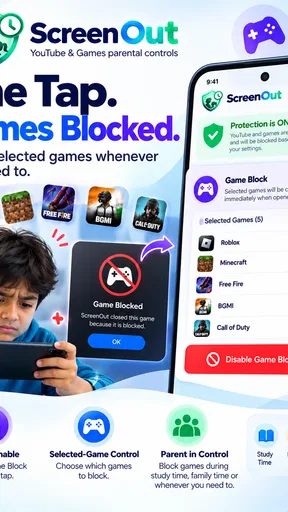
The trade-off is just as clear: a YouTube-specific solution will not replace a complete family safety setup. It should not be treated as a universal answer for messaging, games, web browsing, downloads, or social networks. I would use it as one part of a household rule, not as proof that every aspect of a child’s device use is supervised.
How I would set it up as a household rule
The most effective setup is not to install the app secretly and hope the restriction solves everything. I would first explain the rule in ordinary language: YouTube is available during an agreed period, and when that period ends, the session is over. The app then supports that agreement by providing the technical boundary.
This approach avoids presenting the lock as a punishment that appears without warning. Children are more likely to understand the routine if the parent explains when YouTube is allowed, what happens when time runs out, and how exceptions are handled. The app can enforce the limit, but it cannot decide whether the rule is reasonable for a particular child or day.
There is also a useful practical distinction between planned viewing and emergency viewing. If a child needs YouTube for a school activity, a parent may prefer to handle that separately rather than treating every video session as entertainment. I would keep the rule simple enough that a child can remember it, while making sure the adult remains responsible for exceptions instead of turning every unusual situation into a technical struggle.
What using it in practice may feel like
A screen-time control is only helpful if it fits the moment when the limit matters. In everyday use, the important question is not whether a child can watch a video at all, but whether the app creates a clear stopping point. That stopping point can make transitions easier, particularly when the child is moving from YouTube to homework, sleep, a meal, or leaving the house.
I would pay attention to the first few days rather than judging the experience after one session. Children often test a new boundary by asking for extra time, trying to negotiate, or looking for another route to the same content. That is not necessarily a failure of the app; it is a sign that the family rule needs to be explained and applied consistently.
One non-obvious tip is to avoid setting the limit at the exact moment a child is already upset or deeply engaged in a long video. A predictable viewing window works better than an abrupt interruption chosen during a conflict. If the child knows that YouTube ends before a regular activity, the lock becomes part of the schedule instead of the apparent cause of the disagreement.
A realistic after-school example
Imagine a child coming home, finishing a snack, and asking to watch YouTube before starting homework. Without a clear boundary, that request can quietly expand from a short break into a chain of recommended videos. The parent may be preparing dinner and may not want to monitor the screen continuously.
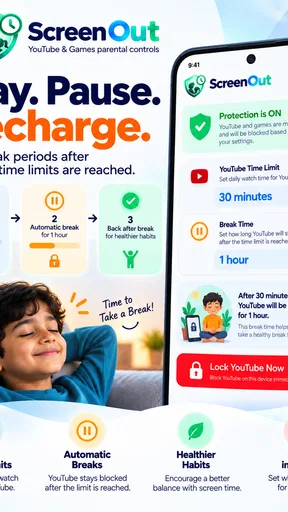
With the app supporting the household rule, the child can have a defined viewing period and a clear point at which YouTube is no longer available. The parent does not need to stand beside the device counting minutes, and the child receives a more concrete signal than a repeated verbal warning. The parent still needs to check whether homework actually begins afterward, but one source of negotiation has been reduced.
This scenario shows both the strength and the limit of the product. It can help end the YouTube session, but it cannot make the next activity attractive, organize homework, or resolve a child’s frustration. I would recommend pairing the restriction with a visible routine, such as snack, video, homework, and play, so the locked screen leads into something rather than simply removing something.
A second use case: bedtime without endless autoplay
Bedtime is another situation where a YouTube limit can have an outsized effect. Children may ask for calming music, a story, or one final video, but the next recommendation can make “the last one” difficult to define. A parent who is tired may give in simply to avoid another discussion.
Here, the app’s value is less about saving a precise amount of time and more about protecting the bedtime sequence. I would set the household expectation before the evening begins, then let the control mark the end of the permitted period. The child may still complain, but the parent is no longer relying entirely on willpower at the end of a long day.
A useful trade-off is that strict limits can feel too rigid on unusual evenings. Travel, illness, family movie nights, or a school project may require a different arrangement. Parents should decide in advance how they will handle those exceptions. If every exception becomes an improvised battle, the technology may create as much friction as it removes.
Where the app is likely to help most
I think the clearest audience is parents of younger Android users who repeatedly lose track of YouTube time. It is also a good fit for families that want one narrow rule rather than a full monitoring system. The Everyone rating makes it approachable as a general family utility, although the age rating should not be mistaken for a guarantee that every video a child encounters is suitable.
That last point deserves emphasis. A time limit controls duration, not the quality or subject matter of every video. Parents still need to think about the child’s YouTube environment, the type of account being used, and whether the content itself is appropriate. If your main worry is exposure to unsuitable material, a time lock alone is not enough.
The app can also help when several adults care for the same child. Grandparents, babysitters, and parents may all have different ideas about how long YouTube should remain available. A shared household rule supported by the same control is easier to follow than a collection of informal promises. The adults still need to communicate, but the child is less likely to receive completely different answers depending on who is nearby.
Important trade-offs before relying on it
The first limitation is scope. This is not the right choice for someone looking for detailed supervision across an entire phone. If you need controls for games, browsers, social apps, contacts, or device-wide activity, a broader parental-control solution may serve you better. Choosing a focused app is sensible only when YouTube is genuinely the central problem.
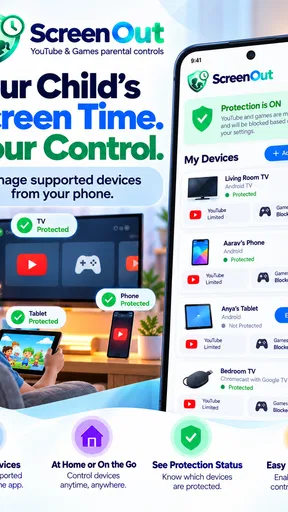
The second limitation is that any device-level rule can become part of a technical routine. Parents may need to make sure the app remains properly configured and that the child uses the intended device. A control on one Android device does not automatically create a family-wide policy for every phone, tablet, or television in the home. I would therefore avoid assuming that installing it once ends all supervision work.
The minimum operating-system requirement is Android 7.0 or later, so compatibility should be checked before planning around it. For families with older hardware, this requirement may be a practical barrier. For supported devices, the current version, 2.4.0, is the version I would look for when installing, since using the current release is generally the best starting point for a new setup.
The optional purchase model is another point to consider. The app is free, but some items cost $0.49 each. That is a small individual price, yet parents should still understand which parts of their preferred setup may involve purchases before handing the device to a child. I would make any purchase decisions as the adult administrator, not leave a child to discover them during a disagreement about access.
Small workflow changes that make the control more effective
One practical insight is to define the end of YouTube in terms of the next activity, not only in terms of a timer. “YouTube ends before brushing teeth” is easier for a young child to understand than an abstract number of minutes. The app supplies the boundary, while the routine supplies the meaning.
A second insight is to use the limit for transitions that are usually predictable. After-school viewing and pre-bed viewing are easier to manage than a limit that changes randomly throughout the day. Consistency gives the child a chance to anticipate the result and reduces the impression that the parent is switching rules arbitrarily.
A third insight is to avoid using the control as the only consequence for behavior. If YouTube is locked whenever homework is incomplete, the child may see the app as part of a punishment system rather than a neutral time boundary. I prefer using it as a normal schedule tool, with separate conversations for behavior, schoolwork, and family responsibilities.
A fourth trade-off involves independence. Older children may be ready to manage their own viewing with reminders and self-control, while younger children may need a firmer barrier. The same strict lock that helps one child may feel unnecessarily controlling to another. I would reassess the arrangement as the child becomes more capable, rather than keeping the strongest restriction permanently.
When another option would be better
I would look beyond this app if the family needs control over several categories at once. A general parental-control platform is more suitable when the parent wants one dashboard for games, web access, app installation, communication, and device schedules. The broader tool may take longer to learn, but it can avoid the need to manage separate controls for separate activities.
I would also choose a different approach if the main issue is content filtering rather than viewing duration. YouTube Lock - Parent Control addresses the time boundary, but a parent concerned primarily with what a child can search for or watch should evaluate content-focused settings and supervision as well. Time control and content control solve different problems, and confusing them can lead to false confidence.
Finally, families that mainly use iOS, smart televisions, or multiple platforms should think carefully about where the rule needs to apply. This app’s stated operating-system requirement is for Android, and a household with mixed devices may find a cross-platform family solution more coherent. A narrow tool is most useful when it matches the device and the exact problem.
My recommendation for parents deciding today
I would recommend this app to a parent who keeps having the same YouTube argument and wants a simple, dedicated way to make the stopping point more reliable. It is especially appealing when the child uses a compatible Android device, the household wants to limit YouTube rather than supervise every app, and the adults are willing to explain the rule before enforcing it.
I would not present it as a substitute for parenting, content awareness, or a complete safety system. Its job is narrower and, in that narrow area, potentially useful: it helps turn an open-ended video session into a bounded part of the day. That can protect homework time, meals, sleep, and family routines without requiring a parent to monitor every minute personally.
The free entry point makes it easy to try, while the small optional purchases mean parents should review the setup before relying on it. I also appreciate that the app’s purpose is easy to understand. There is less temptation to build an elaborate system when the immediate goal is simply to stop YouTube from taking over a child’s free time.
My final view is that YouTube Lock - Parent Control works best as a quiet support for a clear family agreement. Install it when YouTube is the specific source of repeated overuse, set expectations around it, and connect its limit to the next part of the child’s routine. If you need broad device supervision or detailed content management, choose a more comprehensive alternative. For a focused Android-based YouTube boundary, however, Delveron’s app offers a practical starting point without asking parents to turn screen time into a full-time monitoring job.
Pros
- Blocks YouTube access with a simple
- focused parental-control setup.
- Helps reduce unsupervised viewing on shared Android devices.
- Useful for enforcing screen-time rules without changing the child’s account.
- Lightweight design should have minimal impact on device storage and performance.
- Can provide peace of mind when children use a phone or tablet independently.
Cons
- May not block YouTube content accessed through web browsers or alternative apps.
- Children may bypass restrictions if they know the device PIN or settings password.
- Limited controls compared with full-featured family safety platforms.
- Compatibility and reliability may vary across Android versions and device brands.
- Parents should test the lock regularly after system or YouTube updates.
FAQs for YouTube Lock - Parent Control
What is YouTube Lock - Parent Control and how does it work?
YouTube Lock - Parent Control is designed to help parents create a more controlled viewing environment for children using YouTube. Depending on the device and version, it may restrict access to selected content or prevent children from leaving an approved video or app screen. Before downloading, parents should review the app’s current features, setup instructions, and compatibility because controls can differ between Android and iOS.
Can YouTube Lock - Parent Control block inappropriate YouTube videos completely?
The app can provide an additional layer of supervision, but it should not be treated as a complete replacement for parental involvement or YouTube’s own safety tools. It may help limit access, lock the viewing session, or keep children within approved content, but no third-party solution can guarantee that every unsuitable video, advertisement, comment, or recommendation will be filtered perfectly. Parents should also configure YouTube Kids or restricted settings where available.
Is YouTube Lock - Parent Control easy for parents to set up?
Most parents should be able to configure the basic protection features without advanced technical knowledge, although the exact process may vary by operating system. Typically, setup involves installing the app, granting the permissions it requests, choosing the protection settings, and creating a PIN or similar safeguard. It is important to test the lock before handing the device to a child and to keep recovery information secure.
Does YouTube Lock - Parent Control work when a child tries to exit the app?
Its purpose is generally to make it harder for a child to leave the protected viewing experience or open unrelated apps without a parent’s permission. However, the effectiveness depends on device settings, operating-system restrictions, accessibility permissions, and whether the child knows the device password or can restart the phone. Parents should check the app after installation and understand its limitations rather than assuming it provides an unbreakable lock.
Is YouTube Lock - Parent Control free, and are there any privacy concerns?
Availability, pricing, advertisements, and premium features may vary depending on the version downloaded and the app store. Before installing, parents should read the current listing carefully for subscriptions or in-app purchases. Privacy also deserves attention because parental-control apps may request permissions that allow them to monitor or control device activity. Only grant permissions that are necessary, review the developer’s privacy policy, and download the app from an official store.


